
We hid easter eggs in JobWhat. Can you find them all? 🥚
Job searching is stressful, so we hid a few surprises in JobWhat. They're on from the start: grab the riddle list and see if you can find every easter egg.
3 min readJobWhat Team
- Easter eggs
- Job search
- Fun
- Chrome extension
Here's a sentence nobody enjoys reading: "After careful consideration, we've decided to move forward with other candidates." Job searching is mostly waiting, refreshing and retyping your work history, with the occasional polite rejection to keep things interesting. It's a lot. And the tools for it tend to look like they were designed by a spreadsheet having a serious week.
So we did something a little silly. We hid easter eggs in JobWhat. Some wander, some purr, one grants wishes. They're on by default, one switch turns them off, they never get in your way, and they exist for exactly one reason: to make your job search a little less stressful, one small grin at a time.
This post is a scavenger hunt. You get riddles, a few blurry teasers and a spoiler section at the very end for when curiosity wins.
Why put easter eggs in a job search tool?
Because a job search is a long game, and long games need small wins. You don't control when a recruiter writes back. You do control whether the empty space under your job log is empty, or has a snake in it.
We're not saying a cartoon cat fixes the job market. We're saying that on the day you send your 40th application, it's nice when something on the screen is on your side, even if all it says is "meow meow."
Where the switch lives
The easter eggs are on from the start, and they all live behind one switch:
- Click the JobWhat icon in your Chrome toolbar.
- Open the Settings tab.
- Find Fun & encouragement and look for Fun animations & easter eggs.
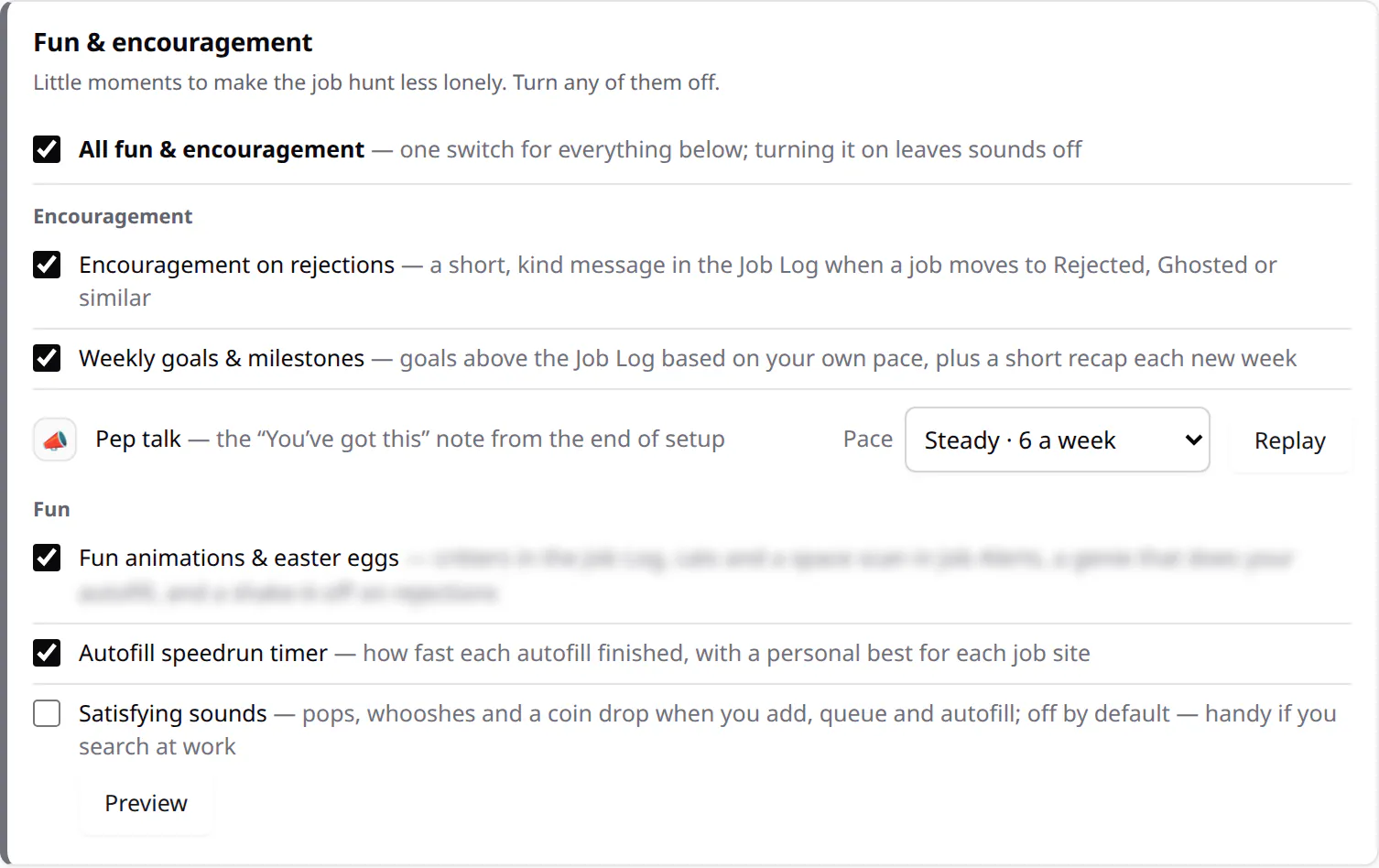
Untick it whenever you like and everything goes quiet straight away. Tick it again to bring the eggs back.
A kind note: if your computer's Reduce motion setting is on (macOS, Windows and most Linux desktops have one), the moving eggs stay hidden even with the switch on. That setting is there for good reasons, and we'd rather respect it than make anyone dizzy. A couple of the calmer surprises still show up without the motion.
The egg hunt
There are five eggs behind the switch, and three bonus ones that stay on even with it off. Tick them off as you find them:
A tip for egg 1 and egg 2: the parade only walks where there's room. If your Job Log is long, scroll to the bottom, or try the Job Alerts tab on a quiet day.
A few teasers
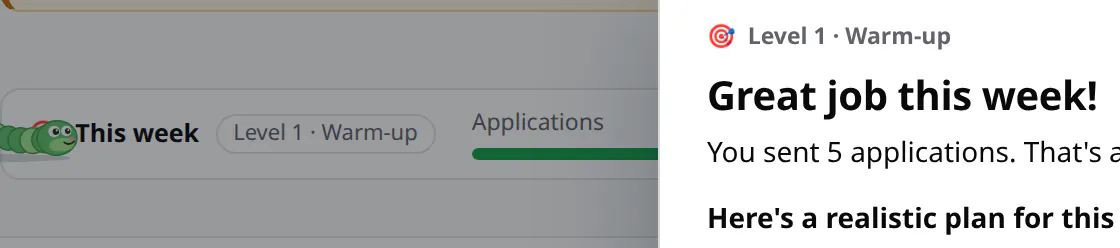
We can't give it all away. But here's a peek, cropped and blurred where it would spoil too much:


House rules: fun, never in the way
We care a lot about JobWhat getting out of your way, so the eggs follow some strict rules:
- On by default, one switch to turn off. Not in the mood for a surprise snake? Untick Fun animations & easter eggs in Fun & encouragement settings and they're gone.
- They never block a click. Everything that moves is see-through to your mouse, so you can click, select and scroll right through it.
- They pause when you're not looking. Switch tabs and the animations stop. They don't burn battery in a background tab.
- They stay in the empty space. Critters only walk where there's no content, and they step aside for real work: while a Job Alerts check runs, the scan takes the stage and the parade waits.
- They respect Reduce motion, as above.
- Nothing extra leaves your computer. The eggs are drawn by the extension itself. No trackers, no downloads, no cat photos from the internet.
Tell us which one you found first
We really want to know. Which egg did you spot first, which one made you laugh, and which critter should join the parade next? Open the Feedback button at the bottom right of this page, or head to our support page, and tell us. Our money is on the cats.
If you'd rather find more time than more eggs, our post on how much time JobWhat saves does the math (and has a smiley of its own), and better LinkedIn job alerts is where the space scan lives.
Add JobWhat to Chrome and happy hunting. 🥚
Spoilers (you've been warned)
Stuck, or just impatient? Here's every egg, revealed.
Show all the spoilersLast chance to look away 🙈
1 and 2. The critter parade
Every 30 seconds, a visitor crosses the empty space between your last Job Log row (or Job Alerts search) and the bottom of the page. It started with a wiggly snake that flicks its tongue, a crawling baby, a bouncing ball and a rolling smiley. The parade is growing to two dozen and counting, including a very slow one, one with eight arms and one that beams down from above. You never get the same visitor twice in a row, and they only come out when there's room for them.


3. Twenty cats, one message
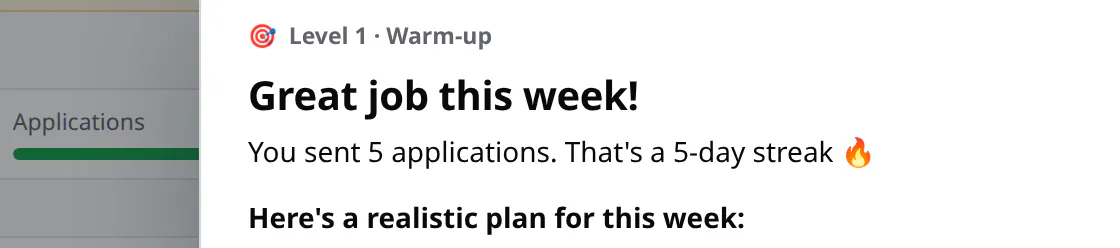
While JobWhat used to import LinkedIn saved searches, a card under the Importing banner showed a new cartoon cat every 4 seconds, once per round: a loaf, a cat in a box, one in a latte, one on a laptop, a party cat and fifteen more. They all said “meow meow”. That import flow is gone — add alerts by pasting a LinkedIn search URL instead — so the cats are a memory now.
4. A space-opera scan
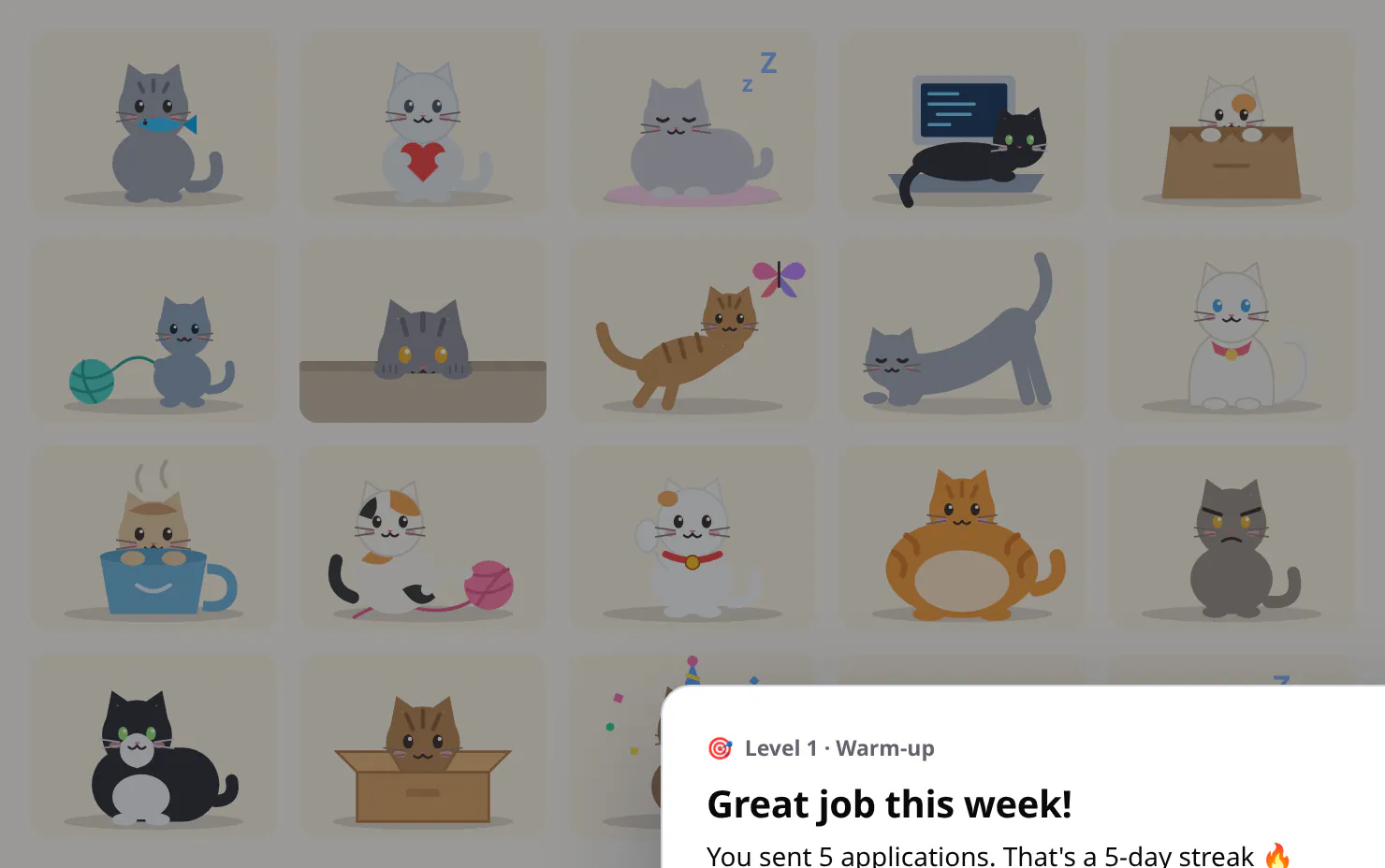
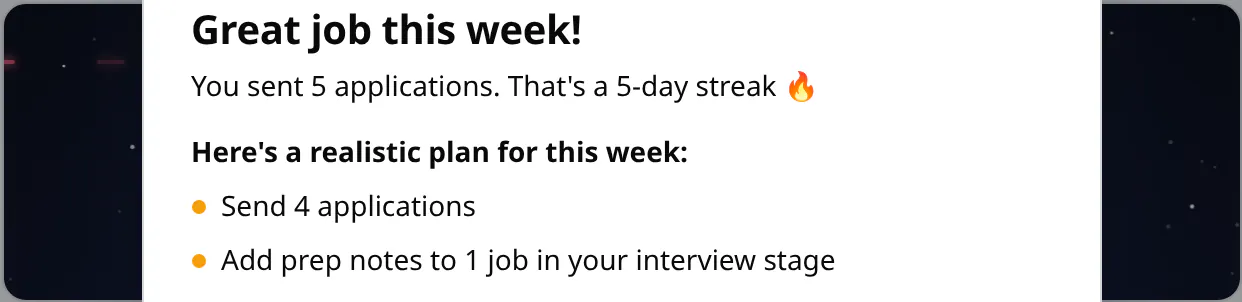
During a Job Alerts check, a glowing scanner sweeps under the status line, towed by a tiny starfighter. Below your searches, a starfield opens with “A long check ago, in a browser far, far away…” and then an opening crawl about brave filters and fresh postings racing home, with the live progress (“scanning search 2 of 3”) written into the story.
5. The autofill genie
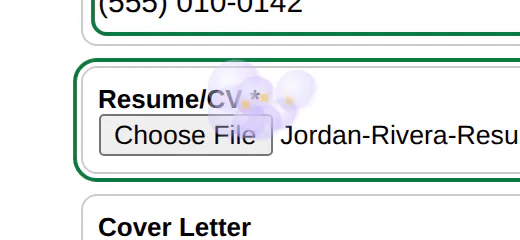
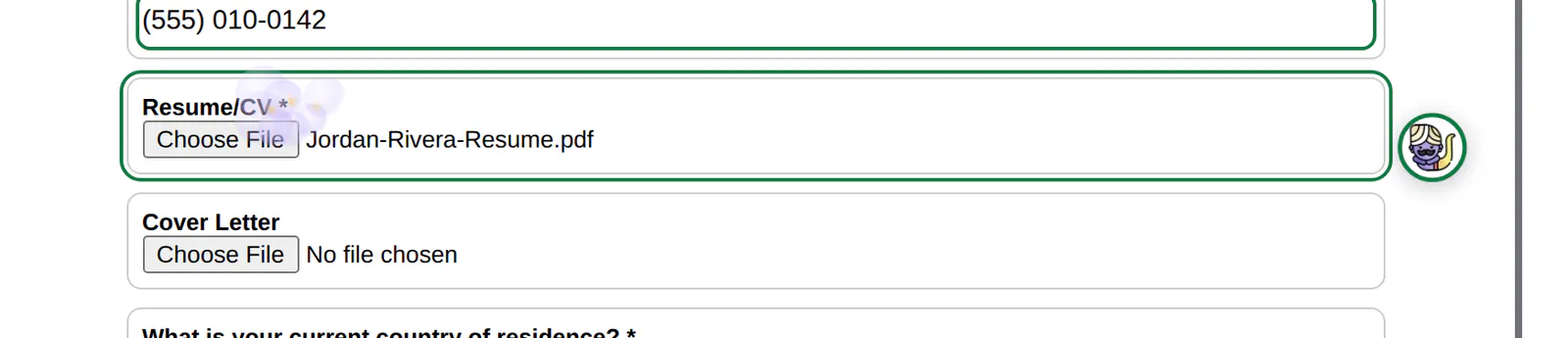
The little robot that follows your autofill from field to field becomes a genie, and every field it fills gets a puff of lavender smoke and a few gold sparkles. Your wishes: name, email, résumé, granted. The genie icon is by Magnific on Flaticon; see our credits.
Bonus: on even with the switch off
- The smiley at the tip of the Minutes saved chart in Metrics, with a note about what the time is for (nap, yoga, banana bread, dog walk or ukulele, depending on the day). There's a whole post about it.
- The poof. Archive a job in your log, dismiss one in Job Alerts or hide one on a job board, and it leaves in a small cloud with a soft “poof”.
- The cheer. When autofill fills every field on a form, you get confetti, a round of applause and a “YAY” sticker in the corner.