
Better LinkedIn job alerts, by not using LinkedIn job alerts 😊
Tired of LinkedIn alert emails full of jobs you already applied to? Paste a search link into JobWhat and get only new jobs, checked in your own browser.
7 min readJobWhat Team
- Job alerts
- Saved searches
- Productivity
Every morning at 8:02, LinkedIn emails us "30+ new jobs for frontend engineer." Four of them are the same jobs as yesterday. One is the job we applied to on Tuesday, recommended back to us with real enthusiasm. One is a Customer Success Manager role, because the posting mentions a frontend somewhere. The rest are "new" the way a reheated sandwich is new.
So we fixed LinkedIn job alerts the only way that seemed to work: we stopped relying on LinkedIn's alert email and built Job Alerts into JobWhat. It runs your LinkedIn searches on a schedule, in your own browser, and shows only the jobs you haven't dealt with yet, sorted by how well they fit your résumé.
Here's how it works, with fictional searches and companies in the screenshots.
Why LinkedIn alert emails disappoint
Saved searches are a great idea. We wrote a whole post on building a daily routine around them. The problems are all in the delivery:
- The email doesn't know what you've done. Viewed it, applied to it, decided it's a hard no? The email doesn't care. Tomorrow it's back.
- Reposts look new. The same role under a fresh job ID is "new" again, forever.
- Alert names are loose. LinkedIn often saves your search as a sentence like "react developer in the past 24 hours austin." The time window and the city end up in the search text, and the results get fuzzier than you meant.
- Once a day, on its own schedule. A great posting from 9 AM waits until tomorrow's email, and by then it has a crowd.
- No real exclusions. Excluding a word in LinkedIn's keyword box drops every posting that mentions it anywhere, not just in the title. Staffing agencies that post the same job four times don't get excluded at all.
- Senior Frontend EngineerQuillstackYou applied on Tuesday
- Frontend EngineerBrightpath HealthAlso in yesterday's email
- Customer Success ManagerLumen RoboticsFor “frontend engineer”?
- Frontend Developer (Reposted)Northwind LabsPosted 3 weeks ago
- Senior Frontend Engineer, GrowthLedgerlyHigh match · 91
- Design Systems EngineerFernleaf GamesHigh match · 88
- Frontend Engineer, Web PlatformKestrel SystemsHigh match · 86
Paste a LinkedIn search link, get an alert
Open the job log, switch to the Job Alerts tab and click Add alert from LinkedIn URL (or Add alert in the top bar). Run the search on LinkedIn the way you like it, copy the URL from the address bar, and paste it in.
JobWhat reads the link and shows a preview: keywords, location, Remote / Hybrid / On-site, date posted, experience level, Easy Apply and other filters from the URL. Tracking parameters like currentJobId, trk and refId are dropped. Give the alert a name (it defaults to keywords + location), pick how often to check, and save. /jobs/search-results/ and /jobs/collections/… links work too.
keywords="frontend engineer" AND (react OR typescript)Keywords“frontend engineer” exact phrase · react, typescript as any oflocation=San Francisco Bay AreaLocationSan Francisco Bay Areadistance=25DistanceWithin 25 milesf_WT=2,3WorkplaceRemote + Hybridf_TPR=r86400Date postedPast 24 hoursf_EA=trueOnlyUnder 10 applicantsrefId=… trackingId=… sortBy=RDroppedTracking junk. Checks always sort by most recent.
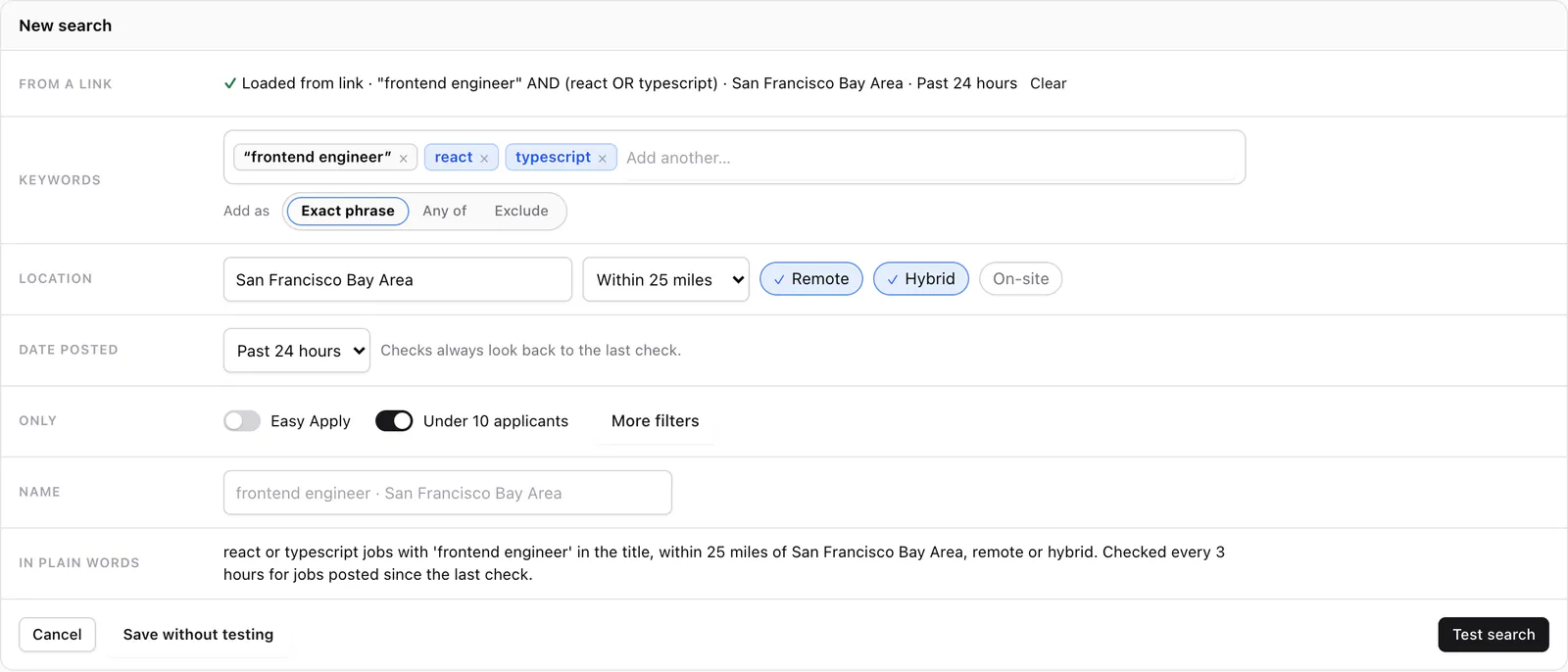
Identical searches (after normalizing the URL) are deduped, so you won't add the same alert twice. Editing an alert lets you replace its URL. JobWhat never creates, changes or deletes anything in your LinkedIn account.
Managing your searches (pause, resume, intervals)
Every search is a group in the Job Alerts tab. Each group header shows the search name (click it to open the search on LinkedIn), the location and workplace filters, and how many jobs are new. Groups with nothing new stay collapsed, and you can drag them into whatever order you like.
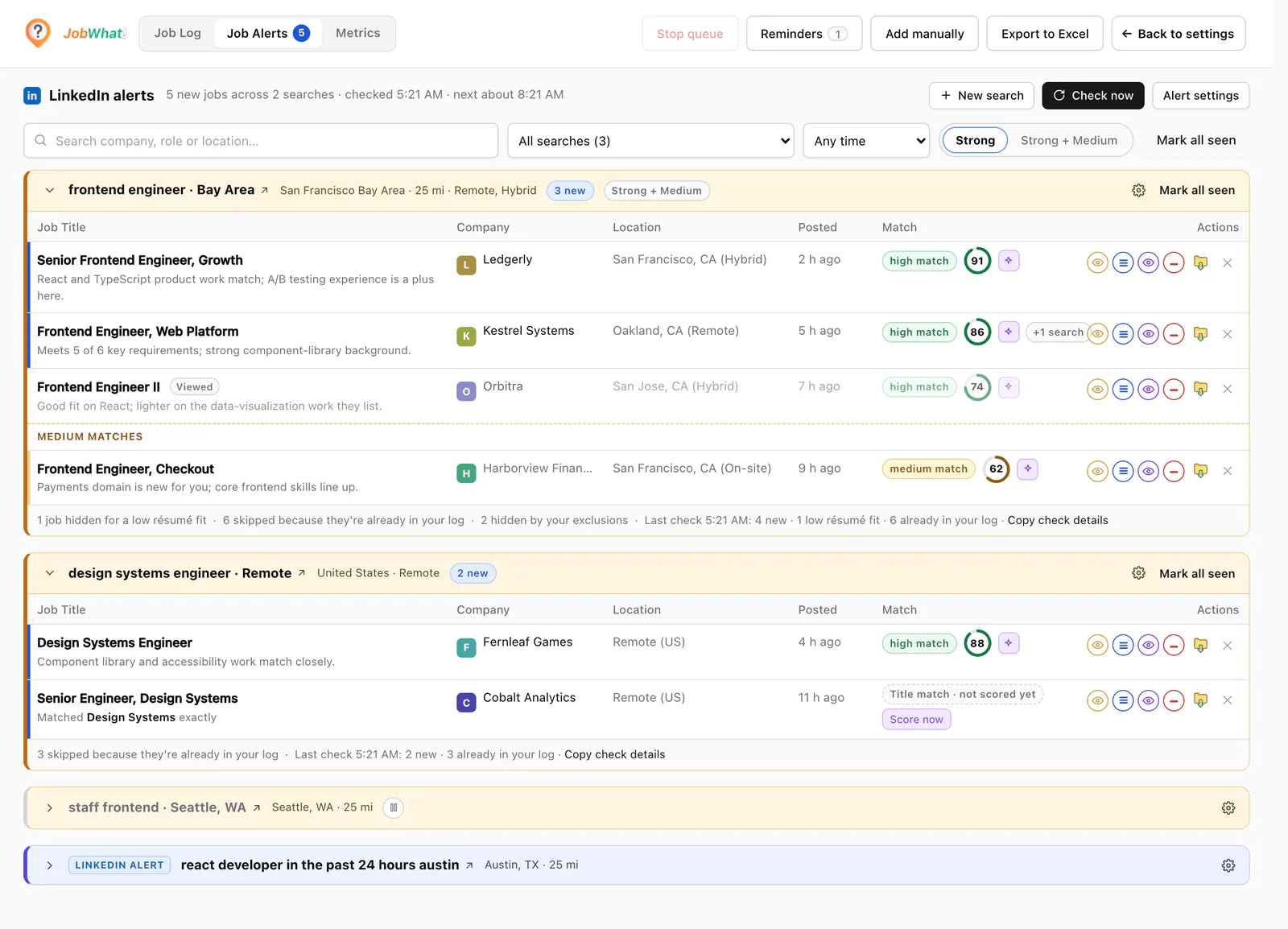
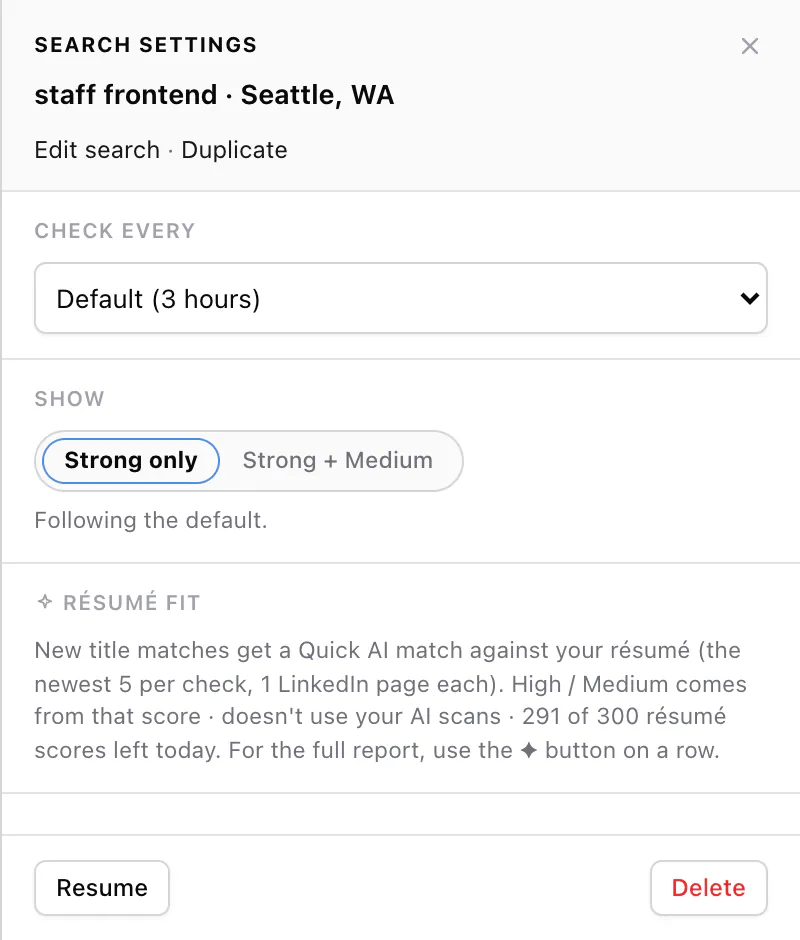
The gear icon on each group opens Search settings:
- Check every: 1 to 48 hours. Keep the default (3 hours) or give a slow-moving search a longer interval.
- Show: Strong only or Strong + Medium matches, for this search only.
- Pause and Resume. Interviewing somewhere and want a break? Pause the search. It stays in the list with a pause icon and isn't checked until you resume it.
- Edit alert, Duplicate and Delete for your searches.
Checks run in the background while Chrome is open. To keep your LinkedIn account safe, JobWhat checks at a human pace in one background tab. If LinkedIn shows a security check, that search stops and asks you to "Complete the site check, then try again." If LinkedIn asks it to slow down, the search says so and you can try again later. It never tries to solve a check for you.
Results that already know your job log
This is the part the email can't do. Before a job shows up in Job Alerts, JobWhat checks it against everything it knows:
- jobs in your job log: queued, watching, applied or any other status
- jobs you've viewed or hidden on LinkedIn with JobWhat
- jobs you've dismissed from Job Alerts
- the same job reposted by the same company under a new link, as long as the title and location stay the same
Anything it already knows is skipped, and each check's summary tells you so, like "12 duplicates (9 in Job Log, 3 already in Alerts)." If two of your searches find the same job, you see it once, under the search that found it first.
Each row has the same buttons you already use on LinkedIn, and they update the same job log:
- View marks it viewed (clicking the title opens it on LinkedIn and does the same)
- Queue adds it to your apply queue, where JobWhat fills the company's application on Greenhouse, Ashby, Lever or Gem. With Auto Submit on (the default), it submits Greenhouse, Lever and Ashby forms when every field is filled and nothing needs review; otherwise it stops at Hit Submit for you
- Watch saves it for later
- Hide hides it everywhere, including LinkedIn search results
- ✕ Dismiss removes it from Job Alerts and it won't come back
After an action, the row stays put, tinted, with a label like In Job Log · Viewed, so you don't lose your place. Only ✕ Dismiss removes it. Mark all seen clears a whole group at once.
A quick AI match on every new job
Having the right words in a title doesn't mean you fit the job. So Job Alerts checks in two steps:
- Title match. Each title is compared with your search. Clear matches and clear misses are decided on your computer. Borderline titles get an AI title match, the same one behind the match chips on LinkedIn search results. If AI isn't available, a keyword match takes over and alerts keep working.
- Résumé fit. For the newest matching jobs (up to 5 per search per check), JobWhat opens the job description and runs a Quick AI match against your résumé. Scores of 70 and up show as a High match, 50 to 69 as a Medium match, and anything lower is hidden. The row shows the score on a dial with a one-line reason, like "Meets 5 of 6 key requirements; strong component-library background."
Quick AI match uses your AI allowance. The ✦ button on a row opens the job for the full résumé analysis, which draws from the same allowance. The résumé score needs a résumé in JobWhat, the "Use AI models" setting turned on, and Pro or the free trial. When a job can't be scored, strong title matches still show as "Title match · not scored yet" with a Score now button. Job Alerts never goes quiet because the AI is unavailable.
Private by design
Job Alerts runs in your own Chrome, with your own LinkedIn sign-in, in one background tab that JobWhat keeps in a collapsed tab group. There's no JobWhat server crawling LinkedIn and no shared pool of results. LinkedIn personalizes results, so your search wouldn't match anyone else's anyway.
Results stay on your device. For AI features, JobWhat sends only what the feature needs: job titles for the AI title match, and the job description plus a short text summary of your résumé for the Quick AI match. That's the same as the match features on LinkedIn job pages.
Try it
Job Alerts is rolling out to JobWhat users now. Look for the Job Alerts tab in your job log, next to Job Log and Metrics. If you don't see it yet, it's on the way. The alerts themselves work on every plan; only the AI parts count against allowances, and every install gets all of Pro free for 14 days.
- Run your search on LinkedIn, copy the URL and paste it into Add alert from LinkedIn URL.
- Check the preview, set a name and check interval, and save.
- Pause what you don't need, and dismiss what you'll never apply to.
- Each morning, open Job Alerts instead of the email. Everything there is new.
Looking for more? Our LinkedIn job search tricks cover Boolean keywords and the time filter in the URL, and our post on applying quickly with a standout application explains why fresh postings are worth the effort.
Add JobWhat to Chrome and let your LinkedIn job alerts finally skip the jobs you've already seen.