
LinkedIn Search Hell, Part 1: You need a math degree to find a job 😊
Nested parentheses, uppercase-only operators, quote soup and f_TPR codes. Why a good LinkedIn job search reads like hieroglyphs, the 7 deadly sins, and a free way out.
10 min readJobWhat Team
- Job search
- Boolean search
- Productivity
Here's a fun fact nobody puts in the job-search guides: to get exactly what you want out of LinkedIn search, you practically need a mathematics degree. Set theory for the keywords, some light cryptography for the address bar, and the patience of a monk for when it quietly returns jobs from the wrong state anyway.
You open LinkedIn with a clear idea of the job you want. You type it like a normal human being: product manager bay area last 48 hours aws. LinkedIn thinks about it, nods politely and shows you a product owner role in Ohio, posted nine days ago, at a company that sells industrial adhesives. Also, it's "Promoted."

This is Part 1 of two. Here we look at the problem: what a "proper" LinkedIn search really takes, the seven mistakes we see most, and one free tool that makes the syntax bearable. Part 2 is about not writing any of it. The searches, jobs, companies in screenshots and numbers below are fictional.
What a "proper" LinkedIn search looks like
Say you want senior product manager roles in cloud infrastructure. No interns, no contracts, no product marketing, and please, not that one staffing agency again. Written the way LinkedIn wants it, that's:
("product manager" OR "product owner" OR "technical product manager") AND (AWS OR "Amazon Web Services" OR "cloud infrastructure" OR (platform AND (Kubernetes OR Terraform))) AND (senior OR lead OR principal OR staff) NOT (intern OR internship OR contract OR "contract to hire" OR temporary) NOT ("product marketing" OR "project manager" OR "program manager") NOT Globex NOT "Initech Staffing"
That's 393 characters, 22 operators, 10 quoted phrases and three levels of parentheses. And it's only the keywords. Add the filters (Bay Area within 25 miles, posted in the last 48 hours, any workplace type, Mid-Senior or Director, full-time, $180k+, two specific companies, newest first) and the link LinkedIn gives you looks like this:
https://www.linkedin.com/jobs/search/?keywords=(%22product%20manager%22%20OR%20%22product%20owner%22%20OR%20%22technical%20product%20manager%22)%20AND%20(AWS%20OR%20%22Amazon%20Web%20Services%22%20OR%20%22cloud%20infrastructure%22%20OR%20(platform%20AND%20(Kubernetes%20OR%20Terraform)))%20AND%20(senior%20OR%20lead%20OR%20principal%20OR%20staff)%20NOT%20(intern%20OR%20internship%20OR%20contract%20OR%20%22contract%20to%20hire%22%20OR%20temporary)%20NOT%20(%22product%20marketing%22%20OR%20%22project%20manager%22%20OR%20%22program%20manager%22)%20NOT%20Globex%20NOT%20%22Initech%20Staffing%22&location=San%20Francisco%20Bay%20Area&geoId=90000084&distance=25&f_TPR=r172800&f_WT=1,2,3&f_E=4,5&f_JT=F&f_SB2=8&f_C=1111111,2222222&sortBy=DD
("product manager"OR"product owner"OR"technical product manager")AND(AWSOR"Amazon Web Services"OR"cloud infrastructure"OR(platformAND(KubernetesORTerraform)))AND(seniorORleadORprincipalORstaff)NOT(internORinternshipORcontractOR"contract to hire"ORtemporary)NOT("product marketing"OR"project manager"OR"program manager")NOTGlobexNOT"Initech Staffing"
Let's decode it, piece by piece:
keywords=…is the whole Boolean expression above, URL-encoded:%22is a quote,%20a space. EveryAND,ORandNOThas to be in capitals, or LinkedIn treats it as an ordinary word.location=San Francisco Bay AreaplusgeoId=90000084is the place, as text and as LinkedIn's internal id for it.distance=25means within 25 miles.f_TPR=r172800is "posted in the last 172,800 seconds." That's 48 hours, obviously. Who doesn't think in seconds?f_WT=1,2,3is workplace: 1 is On-site, 2 is Remote, 3 is Hybrid.f_E=4,5is experience level: 4 is Mid-Senior, 5 is Director.f_JT=Fis job type: F for Full-time (C is Contract, T is Temporary, I is Internship, and so on).f_SB2=8is the salary bucket for $180k+. The buckets go up in $20k steps from 1 ($40k+) to 9 ($200k+).f_C=1111111,2222222limits results to two companies by LinkedIn's numeric company id. Yes, limits: combined with everything else, only jobs at those two companies can match, which makes half of the keywords pointless.sortBy=DDsorts by most recent. DD stands for "date descending," presumably.
Did you spot the bugs? NOT Globex also drops every job that mentions Globex anywhere (more on that below), and f_C quietly shrank the whole search to two employers. Nothing warns you. The results just get strange.
The world doesn't have time for this nonsense, and nobody should have to decipher LinkedIn's hieroglyphs to find a job. (That link is LinkedIn's own Boolean search guide. For the other kind, there's Wikipedia.) LinkedIn does document the operators: AND, OR and NOT in uppercase, quotes for exact phrases, parentheses for grouping, and no wildcards. The f_ codes, on the other hand, aren't documented at all. You learn them the way we did: by squinting at the address bar.
And typing plain English doesn't work either
So skip the syntax and just type what you mean, right? LinkedIn even has an AI search box now. Let's go back to our first search. Typed there, it produces a link like this:
https://www.linkedin.com/jobs/search-results/?currentJobId=4473003689&keywords=product%20manager%20bay%20area%20last%2048%20hours%20aws&origin=SEMANTIC_SEARCH_LANDING_PAGE
/jobs/search-results/is LinkedIn's AI (semantic) search page. It reads your whole phrase and guesses what you meant, instead of matching words exactly. That makes results looser.keywords=product manager bay area last 48 hours awsis the only real search input. All eight words are just words. "bay area" isn't a location filter and "last 48 hours" isn't a date filter.currentJobId=4473003689only picks which job is open in the side panel. It doesn't change the results at all.origin=SEMANTIC_SEARCH_LANDING_PAGEis tracking. It tells LinkedIn which screen you searched from.
What's missing is the real story: there's no location, no f_TPR and no sortBy, so LinkedIn falls back to sorting by relevance. That's how you end up with week-old jobs from somewhere else. The AI did its best with a sentence. The sentence just never became filters.
/jobs/search-results/PageLinkedIn's AI search. It guesses what the phrase means.keywords=product manager bay area last 48 hours awsThe only real inputEight words. None of them are filters.currentJobId=4473003689Not a filterWhich job is open in the side panelorigin=SEMANTIC_SEARCH_LANDING_PAGETrackingWhich screen you searched from(no location, f_TPR or sortBy)MissingNo place, no date window, sorted by relevance
The 7 deadly sins of LinkedIn search
We've committed every one of these. Some of them twice in the same afternoon.
1. Writing operators in lowercase
Only uppercase AND, OR and NOT are operators on LinkedIn. Type designer or researcher not intern and LinkedIn searches for the words "or" and "not" too.
Fix: designer OR researcher NOT intern. Capitals, every time.
2. Quote soup
Quotes mean "these words together, in this order." They're great for a job title. Stack four quoted phrases with AND and you're asking for a posting that contains all four exact phrases, and LinkedIn will happily tell you there are 0 results.
Fix: one exact phrase for the title, then an OR group for alternatives: "product manager" AND (AWS OR "cloud infrastructure"). Add terms one at a time and watch the count.
3. Expecting AI search to follow your operators
Boolean operators and quotes work in LinkedIn's regular search (links on /jobs/search/). In our experience the AI search (links on /jobs/search-results/) may interpret or ignore them, because it's reading your text as a sentence.
Fix: use AI search to explore. When you know what you want, use regular search with real filters.
4. Typing filters as words
"Remote," "Bay Area," "last 48 hours," "full-time" and "senior" all look like filters when you type them. In the keyword box they're only words. Worse, "remote" in keywords also matches on-site jobs whose description says "this role is not remote."
Fix: use the real filters: Location, Date posted, Remote / Hybrid / On-site, Job type and Experience level.
5. Leaving the sort on "Most relevant"
With no sort in the link, LinkedIn sorts by relevance. Older postings it considers relevant can sit above brand-new ones for days, which is why a search can seem to show the same jobs every morning.
Fix: sort by Most recent (sortBy=DD in the link) whenever you check often.
6. Turning on the salary filter and forgetting it
The salary filter (f_SB2) looks harmless. But it hides jobs that don't list pay at all, and a lot of good postings still don't. LinkedIn also seems to apply it mainly to signed-in, US searches.
Fix: set it a notch below your target, or leave it off and read the ranges yourself.
7. Typing NOT "Company" to hide a company
This one feels clever. You're tired of seeing a certain big company, so you add NOT Amazon to your keywords. Now every job whose text mentions Amazon disappears: roles that "integrate with Amazon Web Services," startups founded by ex-Amazon people, agencies whose clients include Amazon. Meanwhile, listings posted under a different company name slip straight through.
There's no URL parameter that excludes a company, either. f_C only includes companies, by LinkedIn's numeric company id.
Fix: don't use keyword NOT for companies. Filter companies out of your results by name instead. 🧪 Our mad data scientists are working on something crazy (coming soon): Part 2 shows what it looks like.
Bonus sin: guessing the codes. f_TPR=r604800, f_WT=2, f_E=3,4, f_JT=F. Don't memorize them. There's a cheat sheet below, and a free tool that writes them for you.
Cheat sheet: the LinkedIn filters worth knowing
| In the link | What it means | Use it when |
|---|---|---|
"exact phrase" |
These words together, in order | A job title that must match |
(a OR b) |
Any one of these | Synonyms or seniority levels |
NOT word |
Drop listings with this word anywhere | One or two words, never company names |
f_TPR=r86400 |
Posted in the past 24 hours | Daily checks |
f_TPR=r172800 |
Posted in the past 48 hours (custom) | Checking every other day |
f_TPR=r604800 |
Posted in the past week | A sensible default |
sortBy=DD |
Most recent first | Whenever you check often |
f_WT=1 / 2 / 3 |
On-site / Remote / Hybrid | Instead of typing "remote" |
f_E=1 … 6 |
Internship, Entry, Associate, Mid-Senior, Director, Executive | Your level plus one neighbour |
f_JT=F / C / T |
Full-time / Contract / Temporary | Permanent vs. contract work |
f_EA=true |
Under 10 applicants | Being early on fresh posts |
f_SB2=1 … 9 |
Salary $40k+ … $200k+ | US searches; hides jobs without pay |
f_C=1035 |
Only this company, by id | Targeting employers (it can't exclude) |
Most of these are undocumented, so treat them as handy shortcuts that could change.
First relief: a free LinkedIn search builder
We built jobwhat.app/linkedin so you never have to remember any of this. It's free, it runs entirely in your browser, and it doesn't need an account or the extension.
Paste a link and see what it really does
Paste any LinkedIn jobs search link into Paste a LinkedIn jobs search link (or press Try an example). The page explains the link part by part, lists What it does not do (no location filter, no date filter, sorted by relevance, no company exclusion), and offers to move words that look like filters into real ones: "last 48 hours" becomes Date posted: Past 48 hours, "bay area" becomes Location: San Francisco Bay Area.
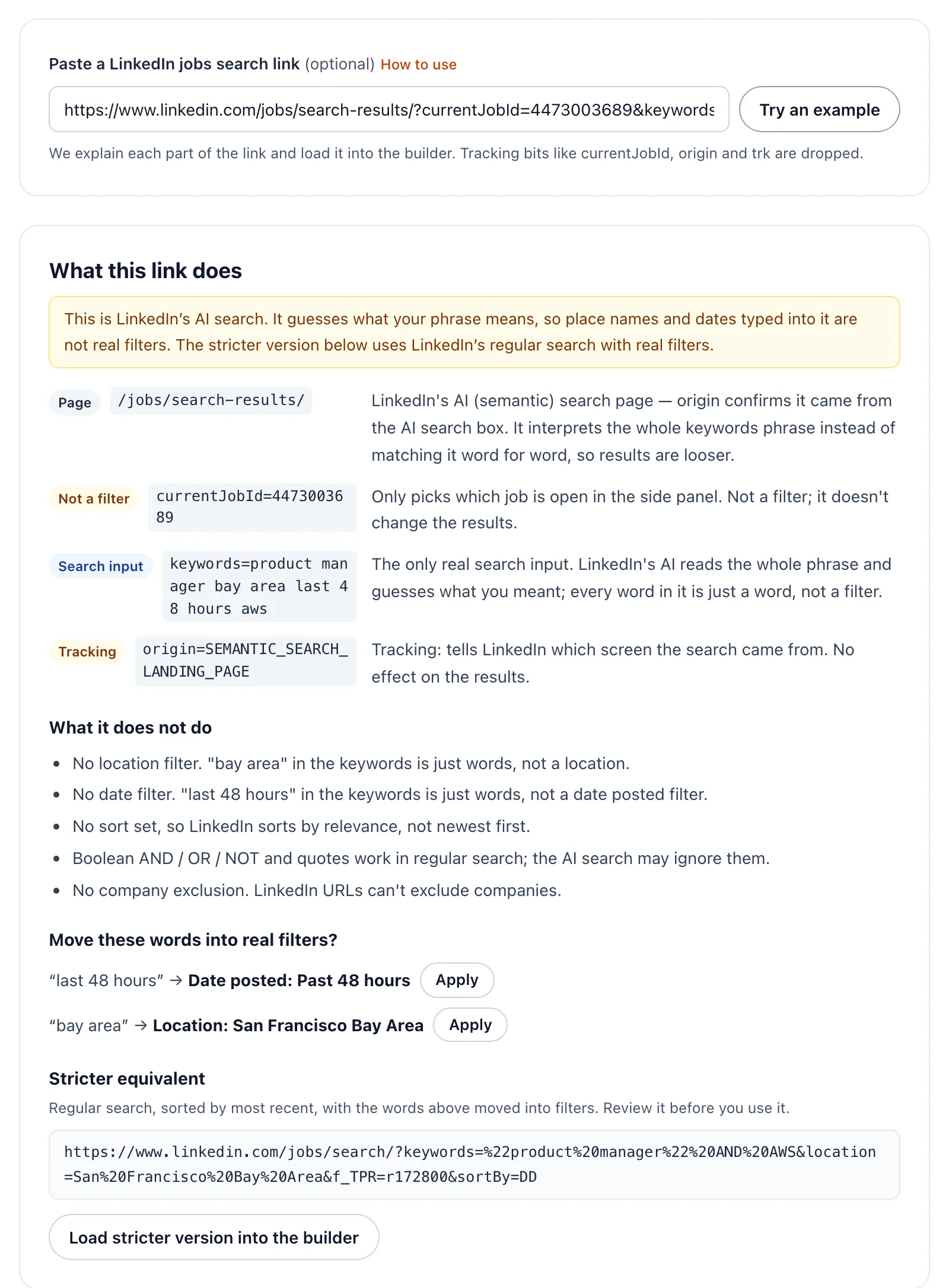
At the bottom is a Stricter equivalent: LinkedIn's regular search, newest first, with the words moved into filters. For our example it's:
https://www.linkedin.com/jobs/search/?keywords=%22product%20manager%22%20AND%20AWS&location=San%20Francisco%20Bay%20Area&f_TPR=r172800&sortBy=DD
That's "product manager" AND AWS, in the San Francisco Bay Area, posted in the past 48 hours, sorted by most recent. Same intent, very different results.
- keywordsproduct manager bay area last 48 hours awsWords, read by AI
- locationnone“bay area” is just words
- date postednone“last 48 hours” is just words
- sortMost relevantOld jobs float up
- keywords"product manager" AND AWSExact phrase + skill
- locationSan Francisco Bay AreaA real filter
- f_TPRr172800Past 48 hours
- sortByDDNewest first
Build a search without memorizing anything
Press Load stricter version into the builder, or start from scratch under Build your search. Keywords come in three rows: Exact phrase, Any of and Exclude. Type a term and press Enter. Multi-word terms are quoted for you, and the operators are always in capitals. A line underneath shows exactly what will be sent to LinkedIn.
The rest are the filters LinkedIn hides behind All filters: location and distance, workplace, date posted (including custom hours or days, like 48 hours), sort, experience level, job type, Easy Apply, Under 10 applicants and salary.
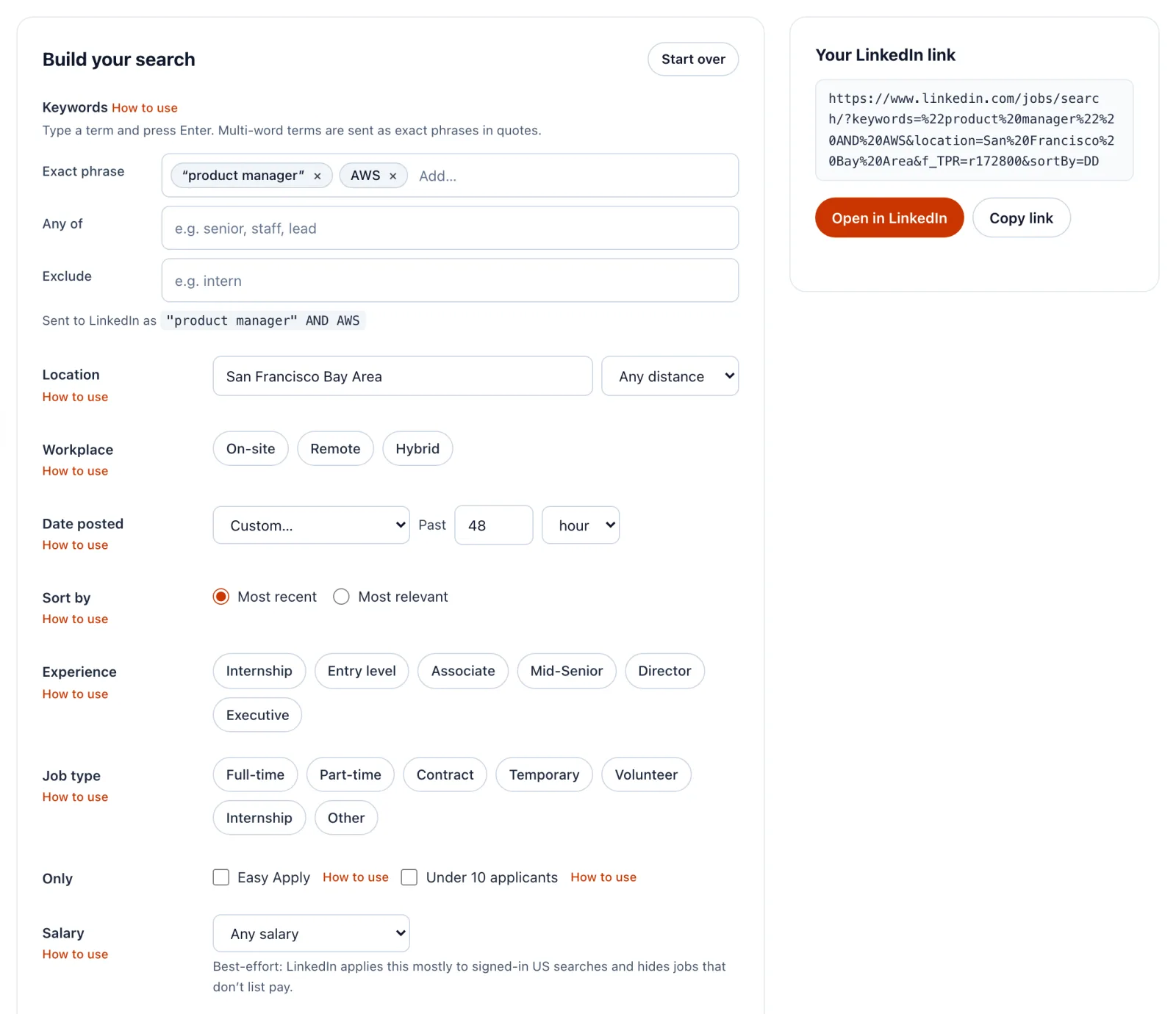
When it looks right, press Open in LinkedIn or Copy link.
Look anything up in the field guide
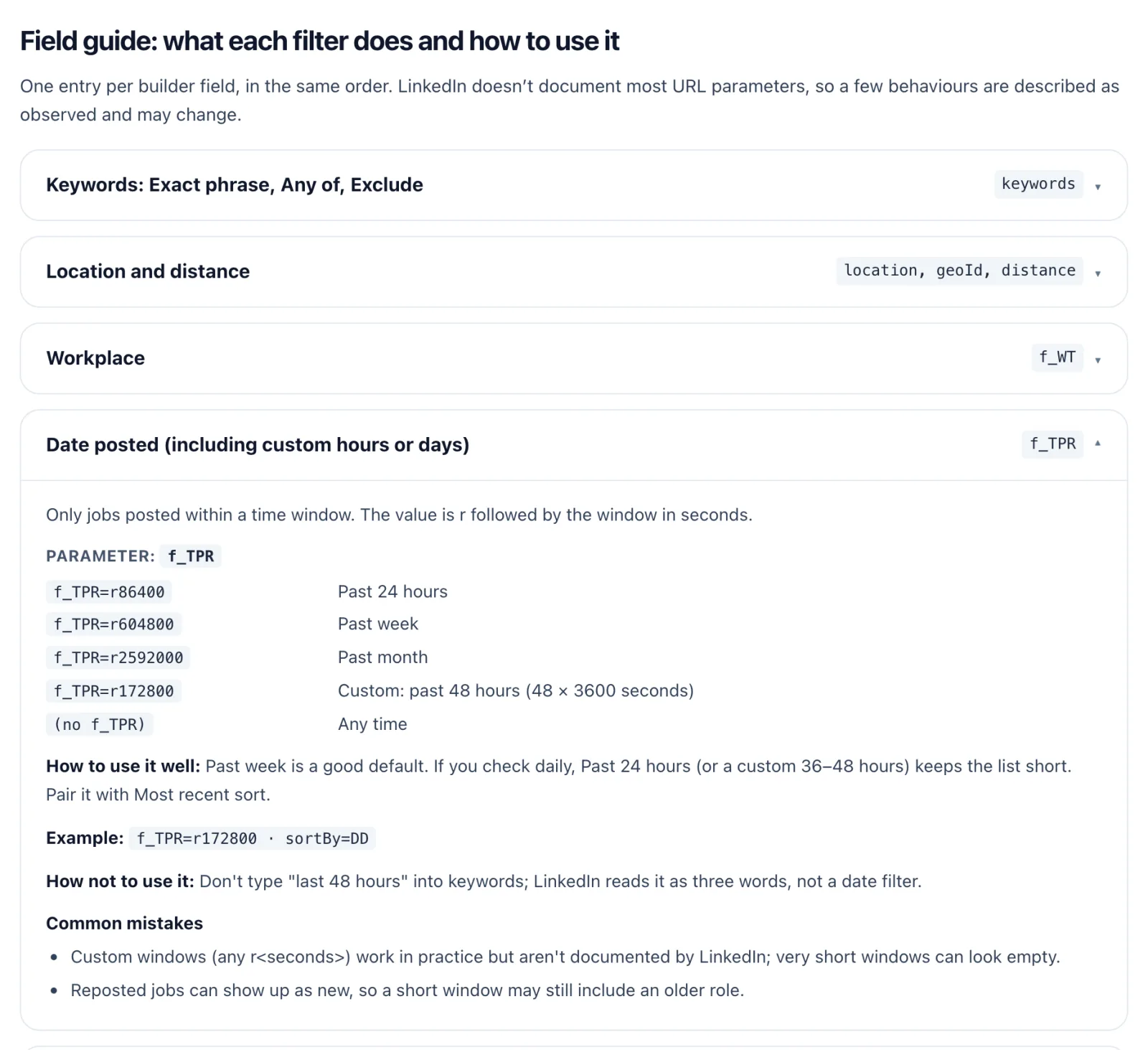
Every field has a How to use link into the field guide: what the filter does, its URL code, how to use it well, how not to use it, and the common mistakes. There's also a cheat sheet and a short FAQ.
FAQ
Why does my LinkedIn search return 0 results?
Usually too many quoted phrases joined by AND, a stray f_C company filter, or a very short date window. Keep one exact phrase, move alternatives into an OR group, and widen Date posted to the past week.
Why do I keep seeing old jobs?
Without a sort, LinkedIn sorts by relevance. Add sortBy=DD (Most recent) and a date window like f_TPR=r604800. Reposted jobs can still look new.
Do AND, OR and NOT work on LinkedIn?
Yes, in regular search, and only in uppercase, with quotes for phrases and parentheses around OR groups. LinkedIn's AI search may ignore them.
Can I exclude a company with a URL parameter?
No. f_C only includes companies, and NOT "Company" in keywords drops every job that mentions the name.
Is the LinkedIn search builder really free? Yes. jobwhat.app/linkedin is free, runs in your browser and doesn't need an account or the extension.
But what if you didn't have to write any of this?
The builder makes the hieroglyphs readable. But you still have to know what you want in LinkedIn's terms: which words go in Exact phrase, which level is "Mid-Senior," and why "Bay Area or remote" is secretly two searches.
What if you could just say it, in plain English, the way you'd tell a friend? And what if, after the search, something cleaned up the mess: the jobs you've already seen, the same job found by three searches, the titles you'd never apply to?
That's Part 2: Just say it in English.